Installing ODE
Windows
Download the most recent EXE file as per the above instructions.
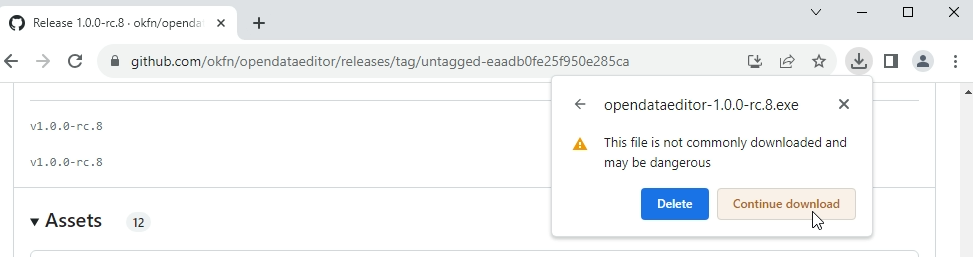
1. If you receive the following message, click ‘Continue download’.
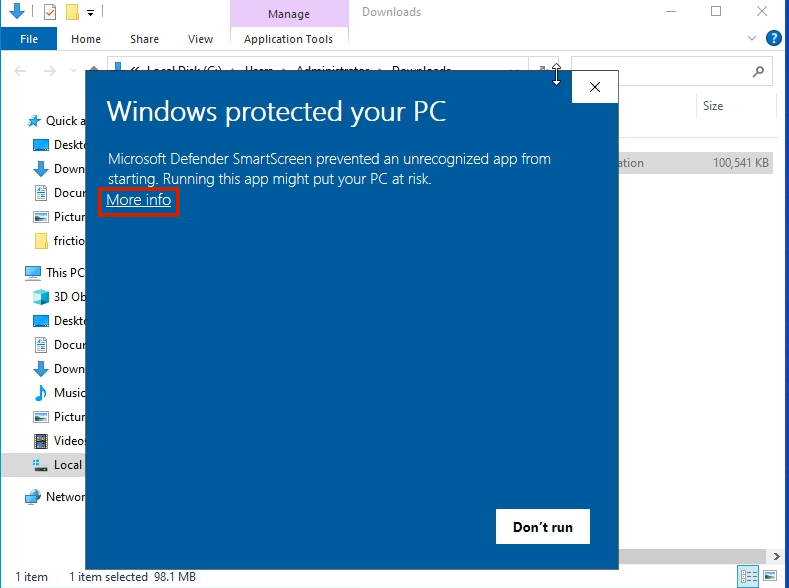
2. After downloading, double-click to run the app. You may encounter the security message window, click ‘More info’ and proceed.
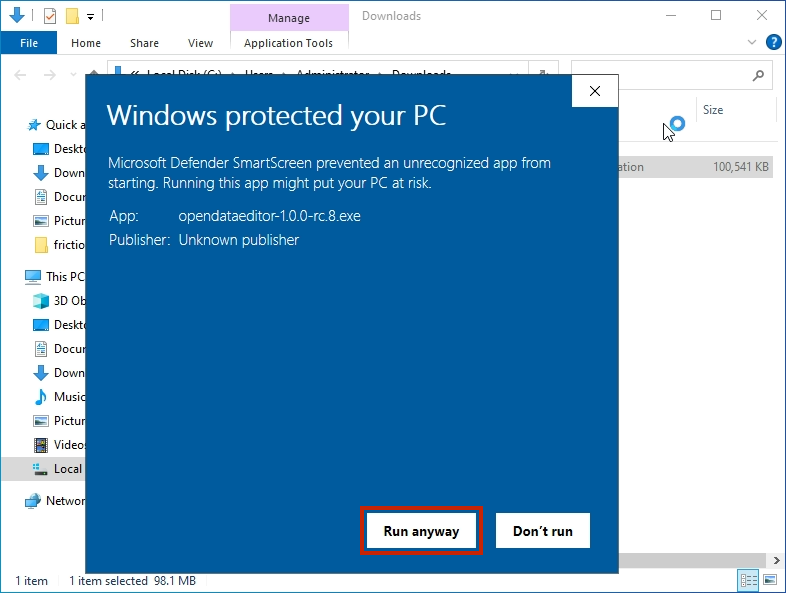
3. Click ‘Run anyway’ to run the application.
MacOS
Download the most recent DMG file as per the above instructions.
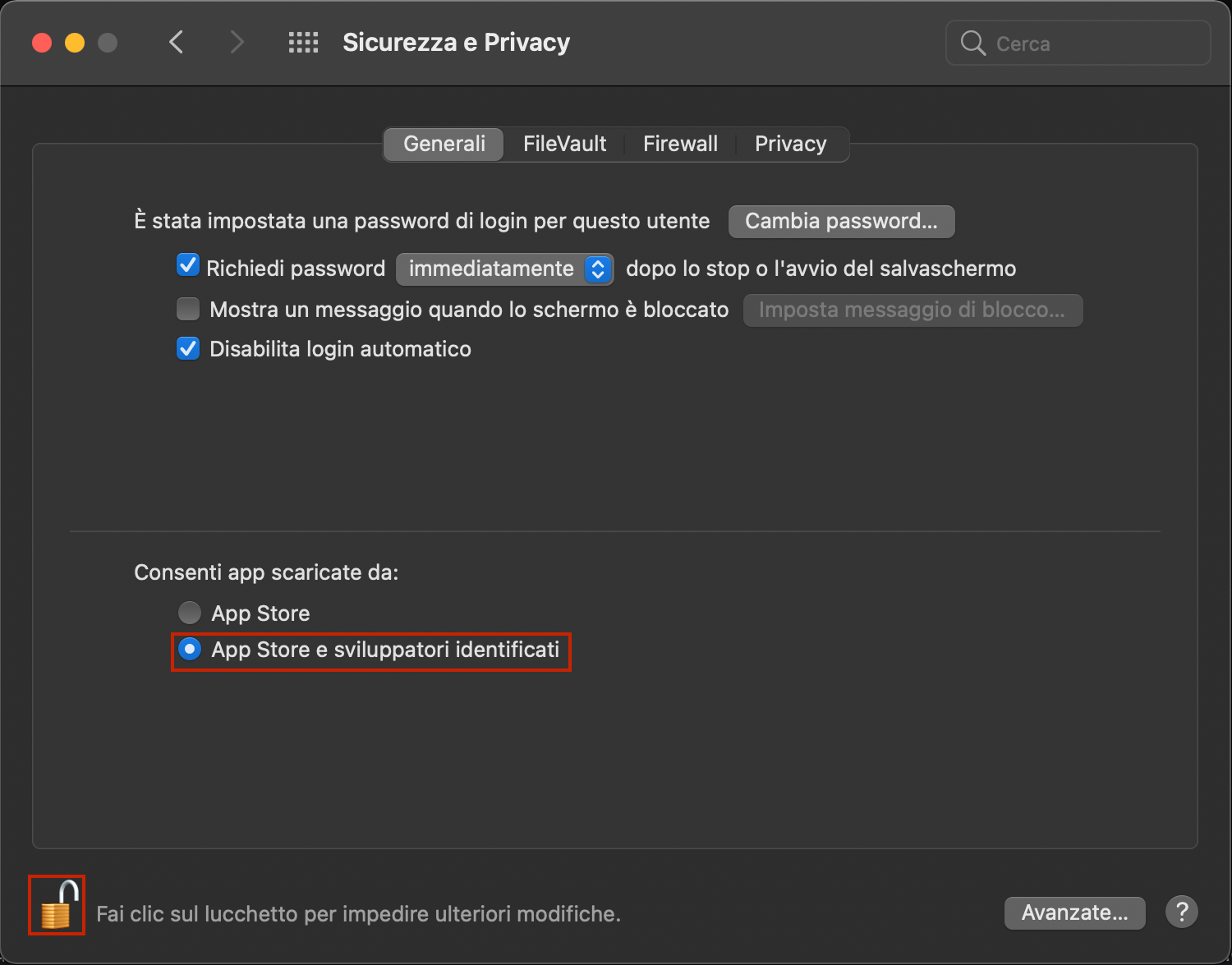
1. If you encounter a security message, click on the question mark and then click the link in the first section.
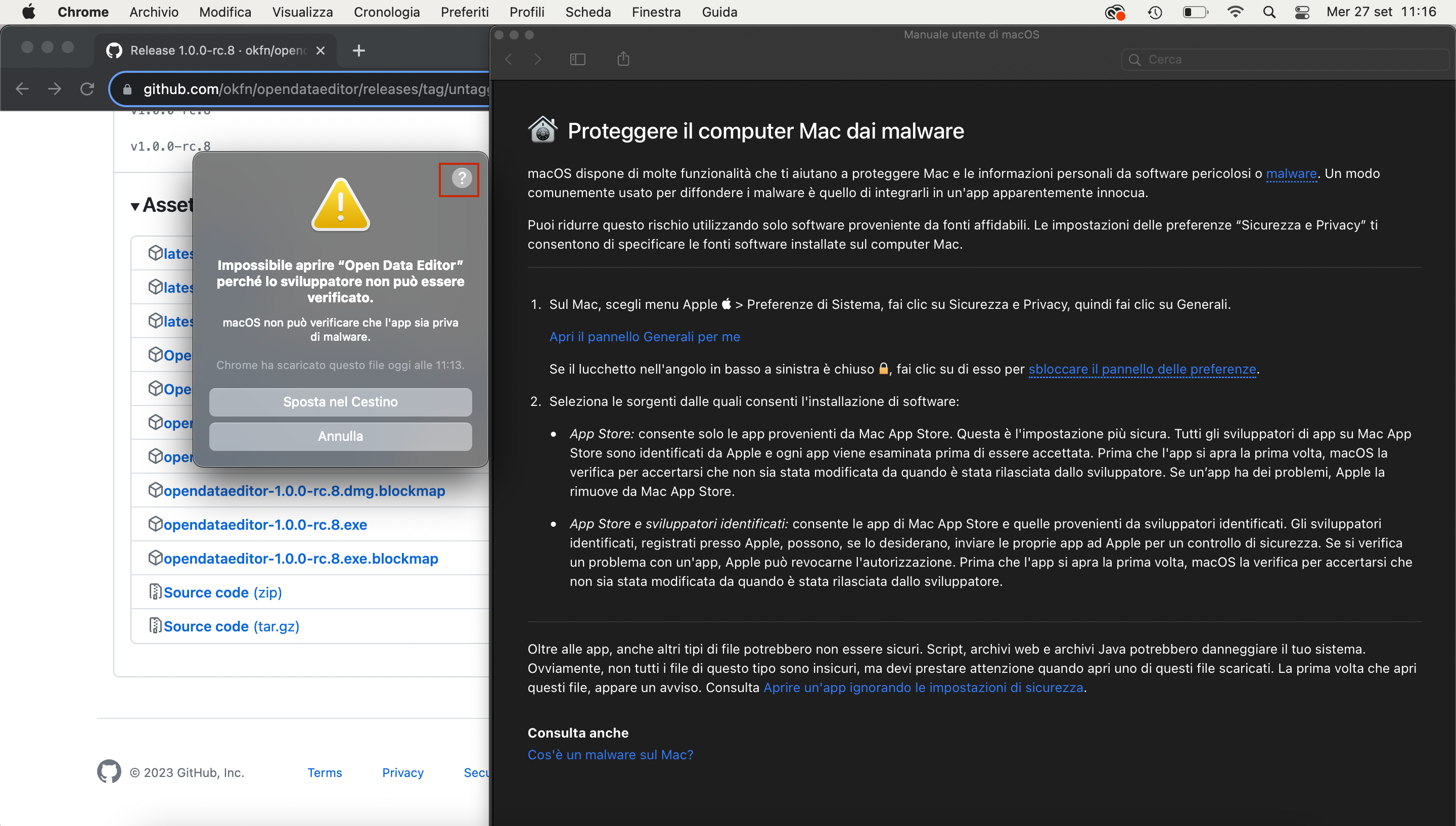
2. Change settings to allow the app to execute.
Linux
For Linux, there are two options available:
AppImage (for any distributions)
deb (for Ubuntu/Debian)
Any Distribution
Download the most recent AppImage file as per the above instructions.
After downloading, you have to make it executable:
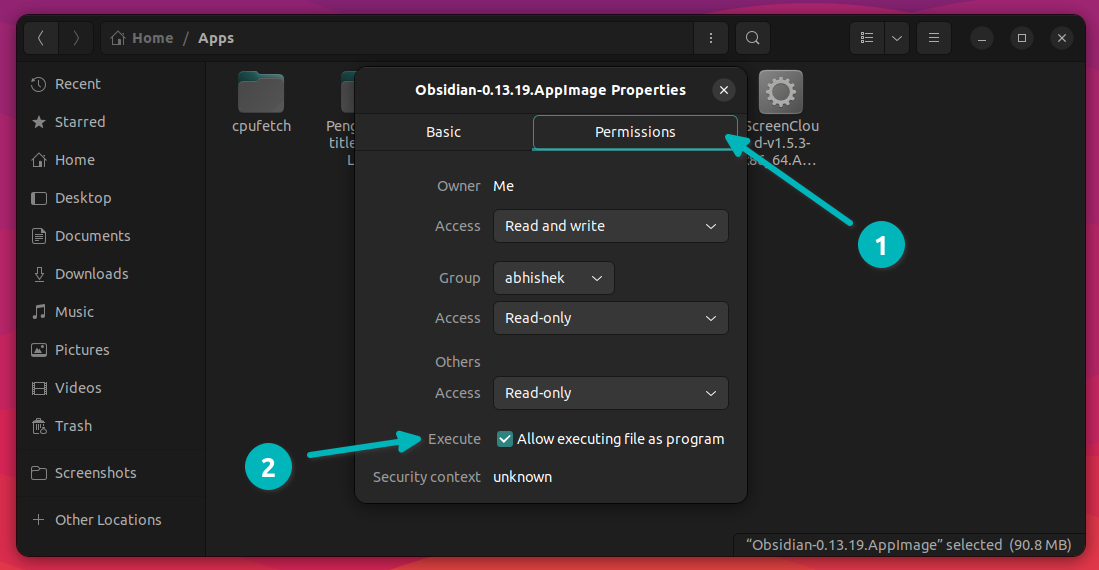
Then double-click on the file to start the application.
Ubuntu/Debian
Download the most recent DEB file as per the above instructions.
Double-click on the file, and it will initiate the installation process.
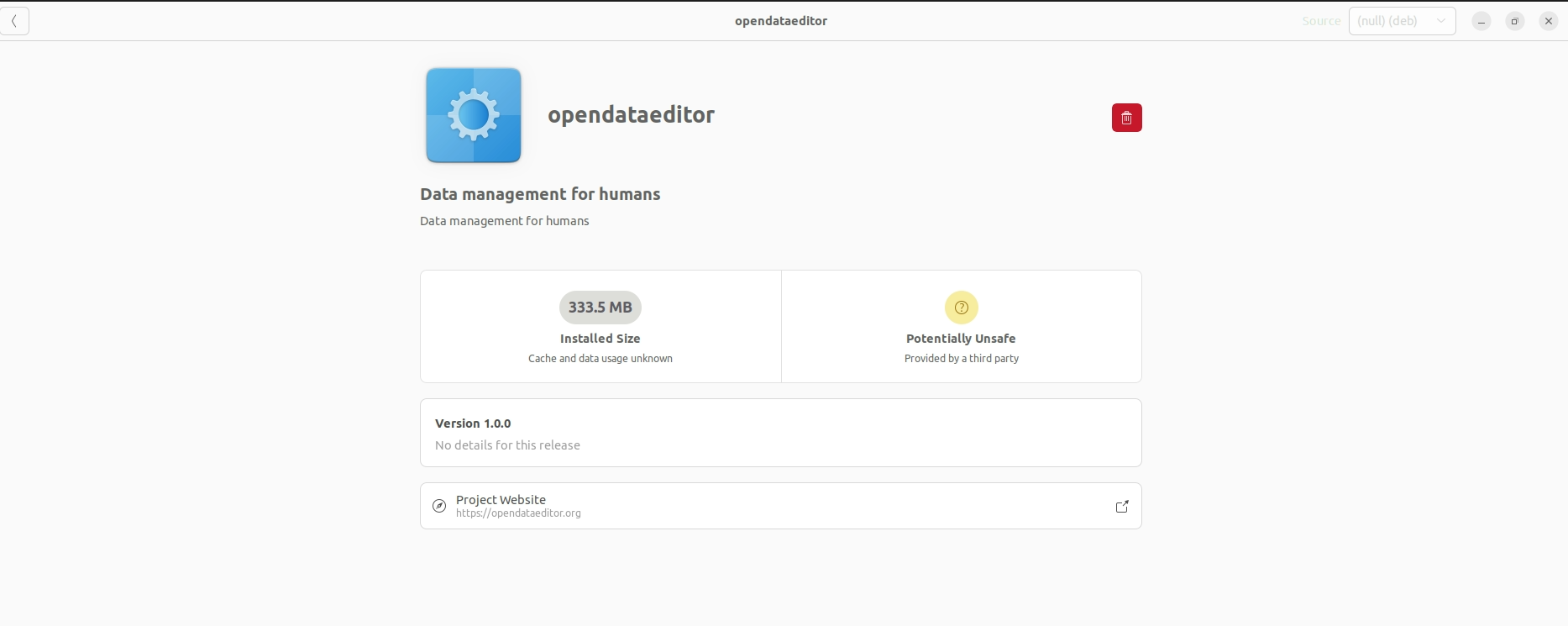
After installation, you can use it.
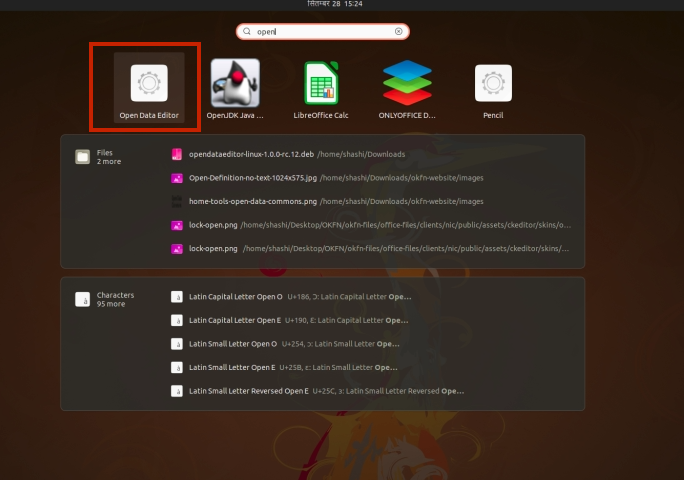
Optionally, in Debian, you can install it by running the following command:
# Replace <version> with the version you downloaded
sudo dpkg -i opendataeditor-linux-<version>.deb